 FileInto, a web app we run
Your bank file
never leaves
your computer
Your bank gives you a spreadsheet. QuickBooks wants a bank file. Every other converter solves that by uploading your statement to their server. FileInto does the work inside your browser tab, so the file never leaves the machine it is already on.

The short version
How do I get a bank CSV into QuickBooks?
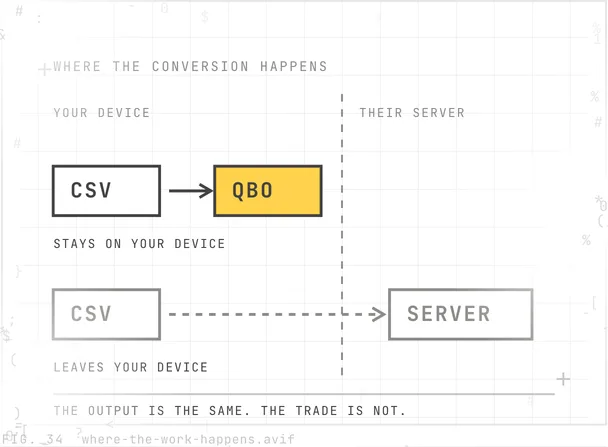
QuickBooks will not import a spreadsheet. It wants a .QBO, which is the bank file format it accepts, and most banks hand out a CSV instead. FileInto reads the CSV and writes the QBO. It does that in the browser tab you already have open, so the statement is never uploaded. The same holds for Quicken, which wants a .QFX, and for Xero, Moneydance and GnuCash, which take a .OFX.
The problem
The file you have is not the file your books want
Your bank exports a spreadsheet
A CSV or an Excel file, with the columns in whatever order that bank decided. It opens fine in a spreadsheet and means nothing to an accounting app.
Your accounting app wants a bank file
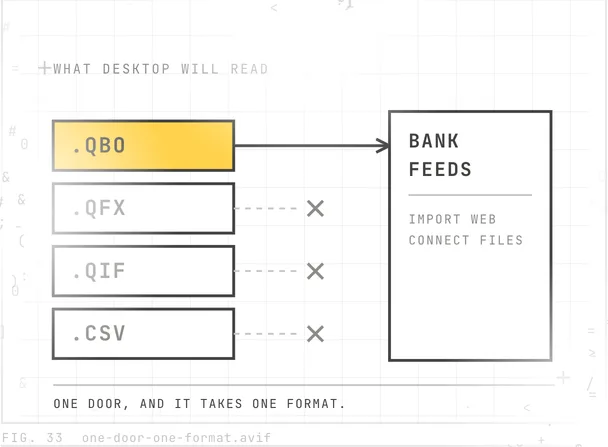
QuickBooks wants a .QBO. Quicken wants a .QFX. Xero, Moneydance and GnuCash take a .OFX, and older Quicken takes a .QIF. These are bank formats, and a bank is the only one that normally hands them out.
So people retype it, or upload it
Retyping a month of transactions is an evening. Uploading it to a converter means a stranger now holds a list of everywhere your money went.
A bank statement is one of the more revealing documents you own. It lists every place you spent money, how much, and when. Handing that to a free website to save twenty minutes is a trade most people would not make if anyone put it to them plainly.
What makes it different
Your file never leaves your device
When you open a converter your browser downloads the converter itself, the same way it downloads any page. After that, the work happens where you are. Your file is read, shown to you and written on your own machine. There is no upload step, so there is nothing for us to store, read or lose.
- The file is never uploaded, to us or to anyone else.
- Nothing from the file is stored. No amounts, no payees, no account numbers, not even the file name.
- Nobody here can read it, because it never arrives.
- It is never used to train an AI model, and never sold.
- Once the page has loaded, the conversion works with the internet switched off.
You do not have to believe any of that. The security page walks you through proving it: open your browser’s developer tools, convert a file, and look at every request it makes. None of them carries your file. Or switch off your Wi-Fi after the page loads and convert one anyway.
If you make an account, we store your email, your plan, your purchases and a count of how many files you converted. Never anything from inside them.
What it converts
Twenty converters today, more every month
What goes in:
- CSV, from any bank or card
- Excel, from any bank or card
- PayPal, activity export
- Stripe, payouts export
- Square, transactions export
What comes out, and what opens it:
| You get | It opens in |
|---|---|
| .QBO | QuickBooks Online and Desktop |
| .QFX | Quicken |
| .OFX | Xero, Moneydance, GnuCash and others |
| .QIF | Older versions of Quicken |
Every input goes into every format, which is where the twenty comes from. More file types are being added, and an Unlimited plan covers the new ones as they arrive.
Price
Free to try on every file, before you decide
Every converter gives you a full preview of every row without an account, and files up to 25 transactions download free. That is enough to find out whether the result imports cleanly before any money changes hands.
A free account raises it to three full files a month, up to 1,000 rows each. A Day Pass is 9 dollars for 24 hours with no subscription, which suits somebody catching up on a year of statements in one sitting. Unlimited is 7 dollars a month or 39 a year, which suits a bookkeeper closing the month.
The current prices and limits are always on the pricing page, which is what you are charged against.
Straight answers
Questions people ask before they convert
Is my bank statement uploaded anywhere?
No. The converter runs inside your browser tab, on your own computer or phone. There is no upload step, so there is nothing for us to store, read or lose. You can check it yourself in your browser’s developer tools, or switch off your Wi-Fi after the page loads and convert a file anyway.
What is a QBO file, and why do I need one?
It is the file format QuickBooks accepts for a bank import, and it is normally something a bank hands you directly. If your bank only gives you a spreadsheet, QuickBooks will not take it. FileInto writes the QBO so QuickBooks sees it as a proper bank file.
Do I need an account?
Not to try it. Every converter shows you a full preview of every row without signing up, and files up to 25 transactions download free. An account is free too, and raises that to three full files a month at up to 1,000 rows each.
What does it cost if I have more than that?
A Day Pass is 9 dollars once and unlocks everything for 24 hours, with no subscription and no renewal. Unlimited is 7 dollars a month, or 39 dollars a year. Buying a second Day Pass while one is running adds another 24 hours.
Will it read my bank’s export, or only certain banks?
It reads the spreadsheet rather than recognizing the bank, so the bank does not have to be on a list. FileInto finds the date, description and amount columns and shows you what it found before anything is written. If it picks the wrong column you change it.
What happens to the file after I convert it?
Nothing, because it never left. The converted file is saved by your browser to wherever your downloads go, the same as any other download. Closing the tab is the end of it.
Which converters exist right now?
Twenty, covering CSV, Excel, PayPal, Stripe and Square going into QBO, QFX, OFX and QIF. More are added every month, and an Unlimited plan includes the new ones as they land.
Further reading
What we have written about bank files
What does a CSV to QBO converter do?
A CSV to QBO converter turns the spreadsheet your bank exports into the .QBO file QuickBooks imports. Check where it converts before you use one: most upload your statement to a server, and the work does not require it.
How do I import bank transactions into QuickBooks Desktop?
Download a .QBO file from your bank, then in QuickBooks Desktop choose Banking, Bank Feeds, Import Web Connect Files, and pick the account. Desktop accepts .QBO only, so a QFX, a QIF or a plain spreadsheet will not go in.
What is a QFX file?
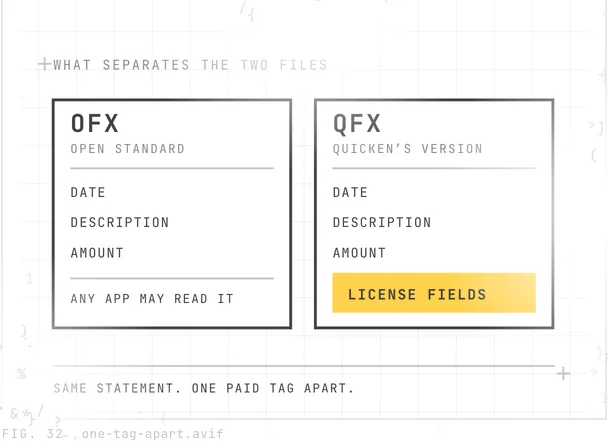
A QFX file is a bank statement in Quicken’s own format, and Quicken is what opens it. It’s an OFX file with extra fields showing the bank paid Intuit a license fee, which is why Quicken rejects some.
Every answer we have written is in the blog.
News
Announcements about FileInto
FileInto converts bank files without uploading them
Native Code has launched FileInto, which turns a bank, PayPal or Stripe export into a QuickBooks or Quicken file. It works in the browser, so the file is never uploaded.

Where to start
Try it on the file you are stuck with.
Every converter previews every row for free, with no account. If the result imports cleanly, you will know before you pay for anything.
Read the announcement, or see the software we build. QRFLOW.codes is the other web app we run, and any question goes to support@nativecodeapps.com.